Database Generation
BRIDGE uses a SQLite database as backend. This database stores:
- raw tables
- annotation tables
- metadata tables
- optional cached processed objects
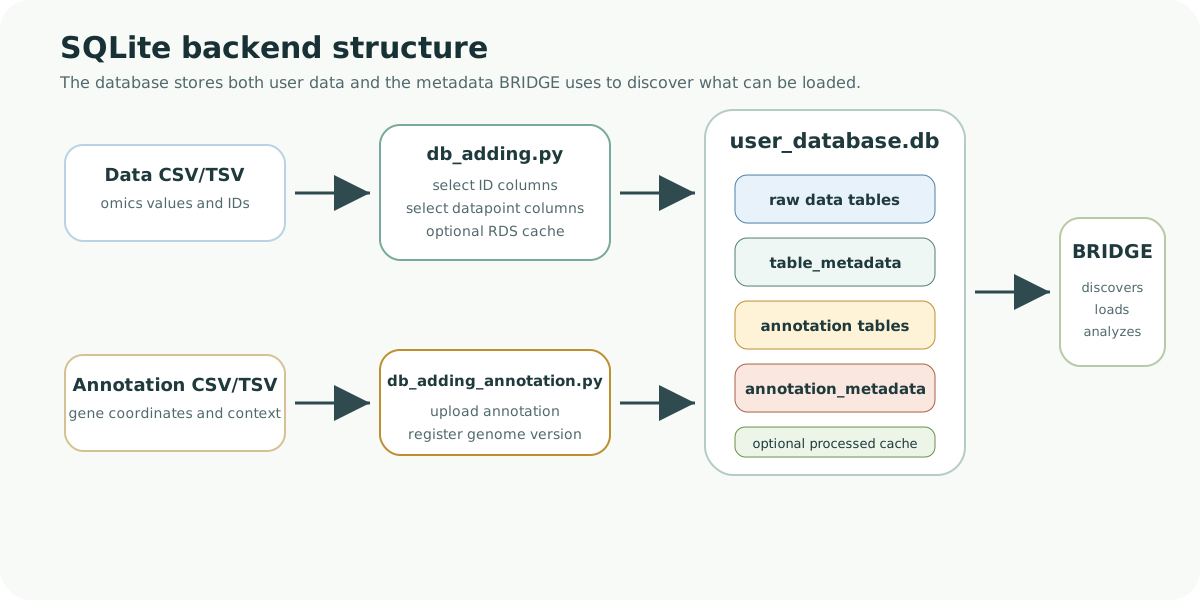
Database figure. The database-generation scripts upload raw data and annotation tables into SQLite, then register metadata tables that BRIDGE uses to discover available datasets, annotation versions, and optional cached processed objects.
Help: how to read this database diagram
The raw and annotation tables store the biological data. The metadata tables tell BRIDGE which tables exist, what species or datatype they belong to, and how they should be loaded. If a table exists in SQLite but is missing from the metadata, it may not appear in the app.
Recommended: interactive database builder
BRIDGE includes a stand-alone Shiny database builder app that wraps the two Python database-generation scripts in a local UI.
Use this route if you want to avoid running the Python scripts manually.
Start the builder from the project root:
Rscript app_db_builder.R
What the builder lets you do:
- set or create the SQLite database file path
- upload a raw CSV/TSV file, or provide a path to one on disk
- preview raw-table columns and choose 1-based identifier/datapoint column indices
- add a raw/omics table through
Python/db_adding.py - add an annotation table through
Python/db_adding_annotation.py - optionally attach a processed
.rdsobject for cache-backed reuse - inspect script output directly in the app
Builder requirements:
- R with
shiny - Python available as
python3orpython - the
Python/db_adding.pyandPython/db_adding_annotation.pyscripts present in the project - optional:
shinyFilesfor filesystem browsing in the database-path selector
Recommended builder workflow:
- Open the builder with
Rscript app_db_builder.R. - Set the database file path, for example
user_database.db. - Click
Create empty DB file. - In
Raw / omics table, select or enter the raw CSV/TSV path. - Click
Preview columns. - Enter the raw database table name.
- Enter identifier column indices and datapoint column indices.
- Optionally attach a processed
.rdsobject. - Click
Add raw table. - In
Annotation table, select or enter the annotation CSV/TSV path. - Enter the annotation table name.
- Click
Add annotation table.
After this, use the generated database when starting BRIDGE.
Manual script workflow
You can still run the underlying scripts directly. This is useful for automation, debugging, or command-line workflows.
Create a new database file:
touch user_database.db
Step 1: add raw/omics data tables
python Python/db_adding.py
What db_adding.py does:
- Loads a CSV/TSV file.
- Lets you select identifier columns.
- Lets you select datapoint columns.
- Uploads the table to SQLite.
- Registers metadata in
table_metadata. - Optionally stores a processed R object in cache.
Step 2: add annotation tables
python Python/db_adding_annotation.py
What db_adding_annotation.py does:
- Loads annotation CSV/TSV.
- Uploads annotation table.
- Registers it in
annotation_metadata.
Re-running scripts:
- You can run both scripts as many times as needed.
- Uploading with the same table name replaces that table.
- Metadata entries are updated with
INSERT OR REPLACE.
Optional CLI usage:
db_adding.py supports non-interactive flags such as:
--csv--db--table--id-cols--tp-cols--processed--rds
db_adding_annotation.py supports:
--csv--db--table